Engineering Note
Your First Apache Fluss Run: What the Flink Quickstart Shows
Connect Apache Fluss to Flink in a local exercise environment, then use Flink SQL to examine its catalog, table models, primary-key reads, and updates.

When you first run Apache Fluss, Docker Compose is not the main thing to understand. The important part is how Flink connects to Fluss as a catalog and how Fluss treats current state and event history as different table models. This guide uses Flink SQL to make that flow concrete.
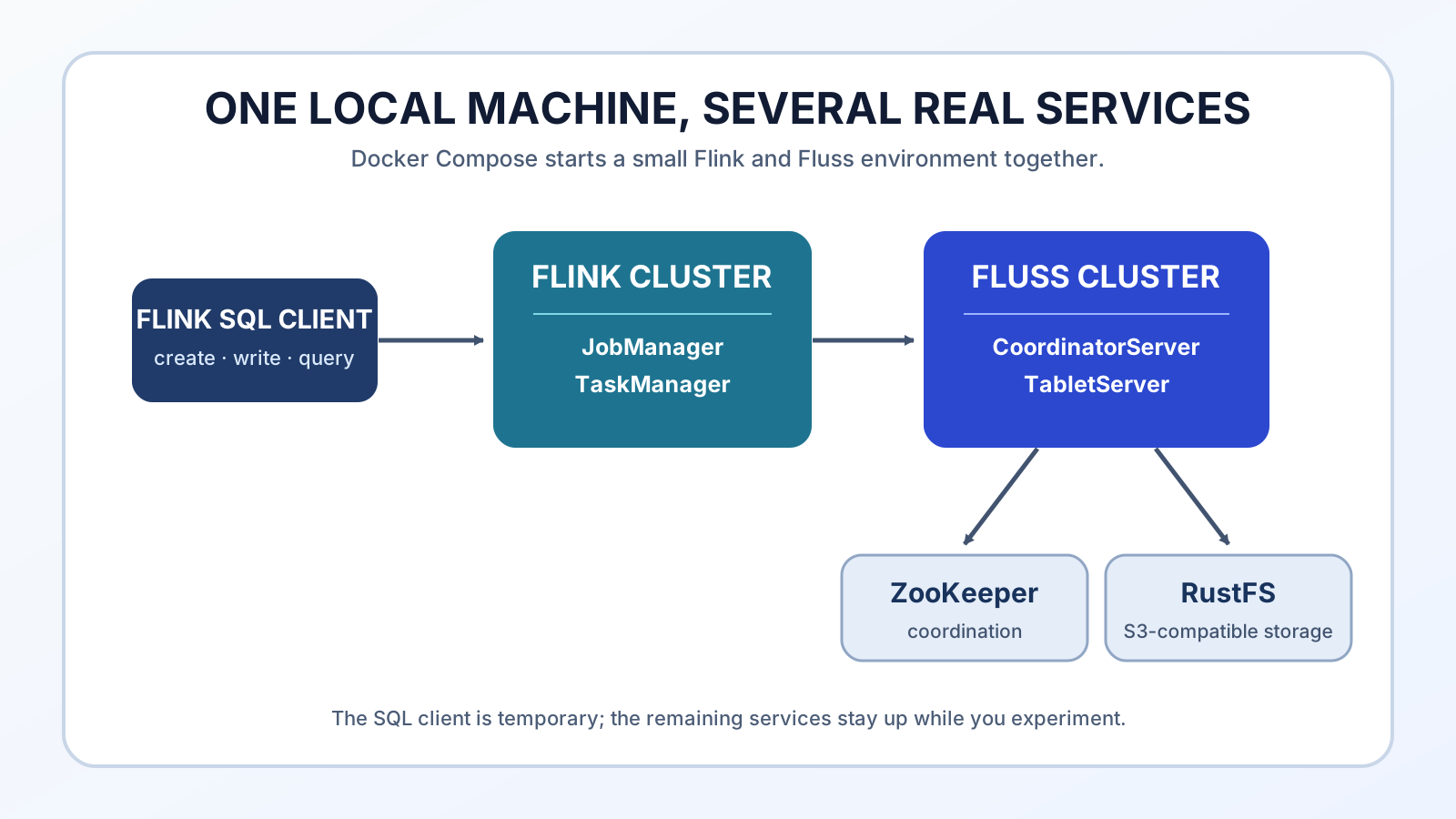
The official Flink Quickstart starts the Fluss, Flink, and S3-compatible storage needed for that exercise on one development machine. It is not a single-process standalone demo: several components perform their real roles in a small integrated environment. It does not replace a production deployment, but it lets you verify table creation, writes, and primary-key reads before bringing in Kafka, Iceberg, or a separate cloud storage account.
The short version
This Quickstart lets you verify the following.
- Fluss databases and tables are created through a Flink catalog.
- A table with a
PRIMARY KEYstores current state per key and can be queried by that key. - The Flink SQL Client image already includes the Fluss connector, so no separate JAR download is needed.
- RustFS acts as local S3-compatible remote storage, while ZooKeeper currently coordinates the Fluss cluster.
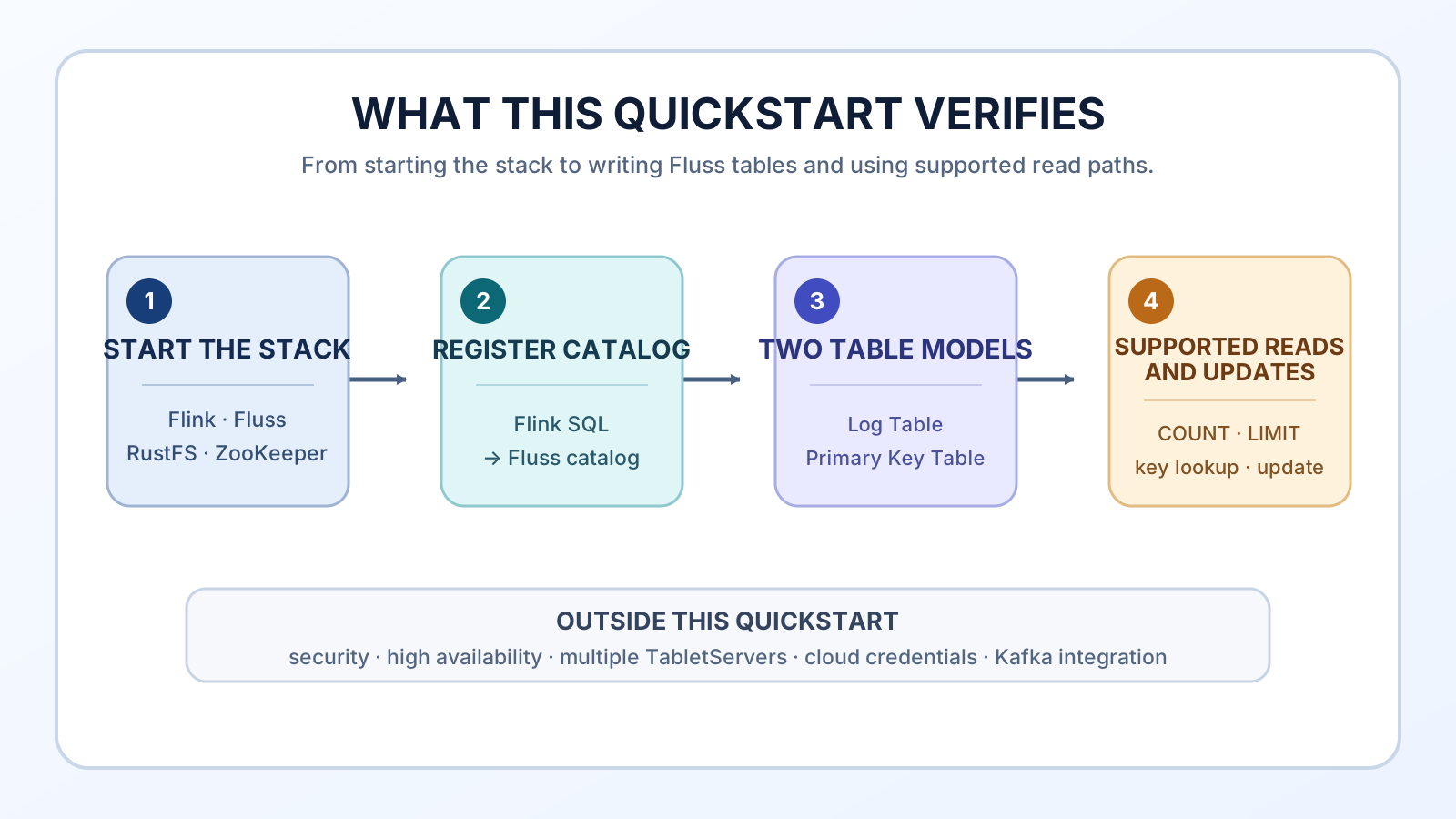
It does not validate production security, multiple TabletServers, high availability, real cloud credentials, or Kafka integration. Keeping that boundary clear prevents a successful Quickstart from becoming an overconfident production design.
Prepare the exercise environment
This guide uses Docker and the Docker Compose plugin to reproduce the official exercise environment. Compose is not the subject of the guide; it is simply how the required components start together. The official guide tested this example with Docker 27.4.0 and Docker Compose v2.30.3, and recommends a recent Compose v2 release.
docker version
docker compose version
You do not need Java or a local Flink installation. The exercise environment already includes Flink and the Fluss-Flink connector.
Create the official exercise environment
Create a working directory.
mkdir fluss-quickstart-flink
cd fluss-quickstart-flink
Save the complete docker-compose.yml configuration from the official guide in this directory. In a new tab, copy everything from services: through the final volumes: block into docker-compose.yml, then return here. Rather than explain the Compose file itself, this post focuses on the roles of the components it starts in the Fluss exercise. Keep the official Quickstart as the source for the long configuration, because image tags and storage settings can change. As checked on July 29, 2026, it starts these services.
| Group | Services | Role |
|---|---|---|
| Remote storage | rustfs, rustfs-init | S3-compatible storage and creation of the fluss bucket |
| Fluss | coordinator-server, tablet-server, zookeeper | Metadata, coordination, and data management |
| Flink | jobmanager, taskmanager, sql-client | SQL, streaming jobs, and batch jobs |
The Quickstart uses apache/fluss:0.9.1-incubating, apache/fluss-quickstart-flink:1.20-0.9.1-incubating, zookeeper:3.9.2, and RustFS. The Flink Quickstart image includes the Fluss-Flink connector, flink-faker, and S3 filesystem support, so no extra JARs are needed.
The rustfsadmin credentials and S3 settings are only for this local exercise. A production deployment needs cloud-specific credential providers, secret handling, TLS, access control, and storage policies. The Compose data.dir: /tmp/fluss/data is not durable local-disk configuration for recreated containers either.
Start the environment and check its state
Start the containers.
docker compose up -d
docker compose ps
rustfs-init creates the bucket once and then exits, so Exited (0) is expected. While the rest of the services are coming up, these logs are the most useful first check.
docker compose logs -f coordinator-server tablet-server taskmanagerOpen http://localhost:8083 for the Flink web UI. http://localhost:9001 is the RustFS console; only in this local example, sign in with rustfsadmin / rustfsadmin. If ports 8083, 9000, or 9001 are already occupied, change only the host-side port numbers in the Compose file.
Understand the SQL object hierarchy first
The next steps create and use objects through Flink SQL. Read a fully qualified name as catalog.database.table.
| Object | Meaning in this Quickstart |
|---|---|
| Catalog | The catalog implementation that lets Flink discover and manage Fluss databases and tables. Registering fluss_catalog makes those Fluss objects available to create, read, and write through Flink SQL. |
| Database | A namespace that groups tables inside a catalog. This guide creates demo. |
| Table | The logical unit that stores and serves data in Fluss. Later, you create customer_profile for current state and order_events for history. |
The full name of the later customer_profile table is therefore fluss_catalog.demo.customer_profile. After USE CATALOG fluss_catalog and USE demo, SQL can use its short table name. The generated sources are pre-created temporary tables in the SQL Client session, referenced through the logical name default_catalog.default_database. That is why the load statements use their fully qualified names.
Open the Flink SQL Client
This command creates the SQL Client container only for the duration of the session and attaches your terminal to it.
docker compose run --rm sql-clientAt the prompt, register the Fluss catalog. coordinator-server:9123 is the CoordinatorServer address inside the Compose network; it is not the host’s localhost.
CREATE CATALOG fluss_catalog WITH (
  'type' = 'fluss',
  'bootstrap.servers' = 'coordinator-server:9123'
);

USE CATALOG fluss_catalog;
SHOW DATABASES;
Catalog configuration is not persisted across SQL Client sessions by default. If you exit and open a new client, run CREATE CATALOG and USE CATALOG again. That is the default Flink catalog behavior, not a Quickstart failure.
For a small exercise that inserts, updates, and then queries deterministically, configure this session for batch execution and synchronous DML. By default, INSERT and UPDATE are submitted asynchronously, so a following query can run before the write has completed.
SET 'sql-client.execution.result-mode' = 'tableau';
SET 'execution.runtime-mode' = 'batch';
SET 'table.dml-sync' = 'true';
Create two tables from generated source data
The Quickstart image already includes temporary source_order, source_customer, and source_nation tables produced with the faker connector. Instead of typing only two rows by hand, load those sources into Fluss tables. Start by inspecting their definitions.
SHOW CREATE TABLE `default_catalog`.`default_database`.source_customer;
SHOW CREATE TABLE `default_catalog`.`default_database`.source_order;
In the output for source_order, note rows-per-second = 10 and number-of-rows = 10000. They explain the slow full-order load later in the exercise.
Now create a Primary Key Table for current customer state and a Log Table that keeps adding order history.
CREATE DATABASE demo;
USE demo;

CREATE TABLE customer_profile (
  customer_id INT NOT NULL,
  name STRING,
  membership STRING,
  account_balance DECIMAL(15, 2),
  PRIMARY KEY (customer_id) NOT ENFORCED
) WITH (
  'bucket.num' = '1'
);

CREATE TABLE order_events (
  order_id BIGINT,
  customer_id INT NOT NULL,
  total_price DECIMAL(15, 2),
  ordered_on DATE,
  order_priority STRING,
  clerk STRING
) WITH (
  'bucket.num' = '1'
);
The PRIMARY KEY on customer_profile makes a later write for the same customer replace its current state. order_events has no primary key, so it is a Log Table where each order is retained. Its order_id is an ordinary business identifier, not a primary key: writing the same value again neither rejects the duplicate nor replaces an earlier row. Creating both makes the difference between an event history and current state concrete.
Load generated customers and orders
The pre-created source_order in the Quickstart is configured to generate 10 rows per second (rows-per-second = 10). Loading all 10,000 source rows unchanged therefore spends about 1,000 seconds generating data alone. That delay comes from the intentional rate limit on the exercise faker source, not from Fluss write performance.
For the first run, load all customers and only 500 orders. Because table.dml-sync is enabled above, each INSERT completes before the next command begins.
INSERT INTO customer_profile
SELECT cust_key, name, mktsegment, acctbal
FROM `default_catalog`.`default_database`.source_customer;

INSERT INTO order_events
SELECT order_key, cust_key, total_price, order_date, order_priority, clerk
FROM `default_catalog`.`default_database`.source_order
LIMIT 500;
Alternative: generate 10,000 orders quickly
To inspect all 10,000 orders from the start, do not run the preceding order_events insert; choose this alternative instead. fast_order_source produces equivalent order-shaped data at 2,000 rows per second and stops at exactly 10,000 rows. Run it in a fresh exercise environment where order_events is empty so the expected count stays correct.
rows-per-second is a cap on source generation, not a promise for the end-to-end Fluss write rate. It does, however, keep generation itself from becoming the bottleneck in this local exercise.
CREATE TEMPORARY TABLE fast_order_source (
  order_id BIGINT,
  customer_id INT,
  total_price DECIMAL(15, 2),
  ordered_on DATE,
  order_priority STRING,
  clerk STRING
) WITH (
  'connector' = 'faker',
  'number-of-rows' = '10000',
  'rows-per-second' = '2000',
  'fields.order_id.expression' = '#{number.numberBetween ''0'',''100000000''}',
  'fields.customer_id.expression' = '#{number.numberBetween ''0'',''20''}',
  'fields.total_price.expression' = '#{number.randomDouble ''3'',''1'',''1000''}',
  'fields.ordered_on.expression' = '#{date.past ''100'' ''DAYS''}',
  'fields.order_priority.expression' = '#{regexify ''(low|medium|high){1}''}',
  'fields.clerk.expression' = '#{regexify ''(Clerk1|Clerk2|Clerk3|Clerk4){1}''}'
);

INSERT INTO order_events
SELECT order_id, customer_id, total_price, ordered_on, order_priority, clerk
FROM fast_order_source;
Use these queries to inspect the loaded volume and order data. order_count should be 500 with the basic path, or 10,000 with the faster-generation alternative. Current Fluss batch reads support COUNT(*) and LIMIT previews for a Log Table, so use those two queries here.
SELECT COUNT(*) AS customer_count FROM customer_profile;
SELECT COUNT(*) AS order_count FROM order_events;

SELECT
  order_id,
  customer_id,
  total_price,
  ordered_on,
  order_priority
FROM order_events
LIMIT 10;
Add an event to the Log Table
order_events has no primary key, so instead of finding a key and replacing its current value, add one more order event. This row does not replace an earlier order; it becomes another entry in the history.
INSERT INTO order_events VALUES (
  999999999,
  999999,
  CAST(42.00 AS DECIMAL(15, 2)),
  DATE '2026-07-29',
  'quickstart',
  'Quickstart Clerk'
);

SELECT COUNT(*) AS order_count FROM order_events;
order_count becomes 501 with the basic path, or 10,001 with the faster-generation alternative. A Log Table is built to keep adding events; a point query that finds one row by primary key is available only for a Primary Key Table. This exercise therefore verifies a Log Table append by observing the increased row count.
Now try to change the event that you just added in place. This statement is expected to fail: a Log Table supports appends, not updates or deletes. The exact error text can vary by Flink and Fluss version.
UPDATE order_events
SET order_priority = 'corrected'
WHERE order_id = 999999999;
An analysis that groups the full Log Table by customer or total spend is outside this batch-read path. To maintain it continuously, build an aggregate table with a Flink streaming job, or use lakehouse tiering and an analytical engine in the next step.
Replace current state by inserting the same primary key
Keep the order history intact while changing the current state of one customer. Rather than depending on whichever membership happens to be present in generated source data, first write a dedicated exercise row under the fixed key 999999.
INSERT INTO customer_profile VALUES (
  999999,
  'Quickstart User',
  'quickstart-before',
  CAST(0.00 AS DECIMAL(15, 2))
);
Inspect its state before the change.
SELECT customer_id, name, membership, account_balance
FROM customer_profile
WHERE customer_id = 999999;
Then insert a new state with the same key, 999999, and query it again. In a Primary Key Table, the new row for the same primary key becomes current state instead of remaining alongside the earlier row.
INSERT INTO customer_profile VALUES (
  999999,
  'Quickstart User',
  'quickstart-after',
  CAST(0.00 AS DECIMAL(15, 2))
);

SELECT customer_id, name, membership, account_balance
FROM customer_profile
WHERE customer_id = 999999;
Comparing the before and after results should show the exercise row’s membership changing from quickstart-before to quickstart-after. Although you inserted the same key twice, the query returns one current row—unlike a Log Table. This flow makes the division of responsibilities visible: Flink runs computation and SQL, while Fluss stores and serves event history and current primary-key state as different table models.
Next step: enrich orders with lookup joins
The official example goes further by creating customer and nation Primary Key Tables, then enriching order events with lookup joins against them. To see a more realistic streaming path that attaches customer and nation data at order-processing time, follow the official streaming and lookup-join section.
Kafka is deliberately absent from this environment. You do not need it to see Flink create, write, and query Fluss tables. Connecting existing Kafka events to Fluss tables is a separate data-path design with its own failure and replay concerns.
The next step is the Lakehouse Quickstart
This Quickstart focuses on Fluss’s real-time tables and Flink SQL. To see tiering and union reads, continue with the Streaming Lakehouse Quickstart. It adds Paimon or Iceberg and RustFS, then creates tables with a lakehouse tier enabled.
The complexity increases too. The Paimon route adds a server-side S3 plugin, while the Iceberg route also adds Iceberg and JDBC JARs plus a PostgreSQL catalog. It is usually better to confirm the table model and SQL connection here first, then add the Lakehouse setup only when long history and union reads are actually needed.
Clean up
Leave the SQL Client with quit;. To remove the Compose services and the exercise data, run:
docker compose down -v-v deletes the rustfs-data volume. Use docker compose down without -v if you want to keep the data for another session.
Conclusion
The point of the Flink Quickstart is not Compose itself. It is the chance to examine Fluss table models with Flink SQL in an environment where Fluss, Flink, S3-compatible storage, and coordination services work together.
Start the exercise environment.
Register the Fluss catalog in Flink SQL.
Create a primary-key table and query its current state.
Only then expand into streaming writes, lookup joins, and Lakehouse tiering.
That order lets you examine Fluss’s storage and table model directly, before trying to decide about Kafka or Iceberg all at once.
Further Reading
- What Is Apache Fluss? A Streaming Lakehouse Between Kafka, Flink, and Iceberg - Compare the roles of the components started in this Quickstart across a data path.
- Where Is Kafka Disk Going? Object Storage and New Streaming Tiers - Put remote storage and streaming-storage design changes in context.
- What Is the Difference Between Pull and Push Metric Collection? - Understand responsibility boundaries in observability as you grow an exercise environment toward operations.